Git for Beginners
Suppose you are working on a project and suddenly you realize you broke the codebase. You don’t like the current version actually or like you made one part perfect and other team member made some changes to other part and this messed with all your codebase. Now you are unable to configure which part of project is from previous codebase and which is actually working. You wish you had a time machine to revert all changes or at least see which part changed from the previous version, causing trouble.
Well, git is here to solve all those issues. Even git can solve a lot more than that, like you and your multiple friends can code together on same project and merge together at the same time. Git records the snapshots of timelines of change history.
Before you fully understand lets understand some prerequisites:
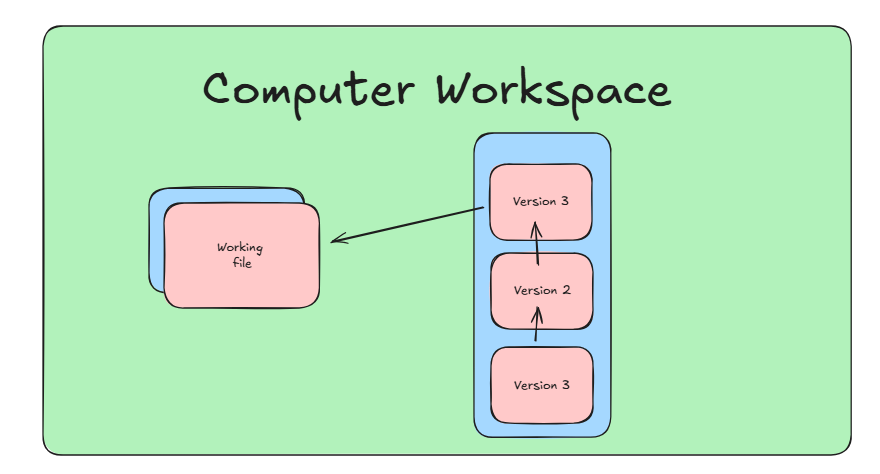
Version Control: Version control is a system that records changes to a file or set of files over time so that you can recall specific versions later. For eg; Editors edit a photo, it seems good, saves to a draft and continue so that if it wants back it can be accessed.
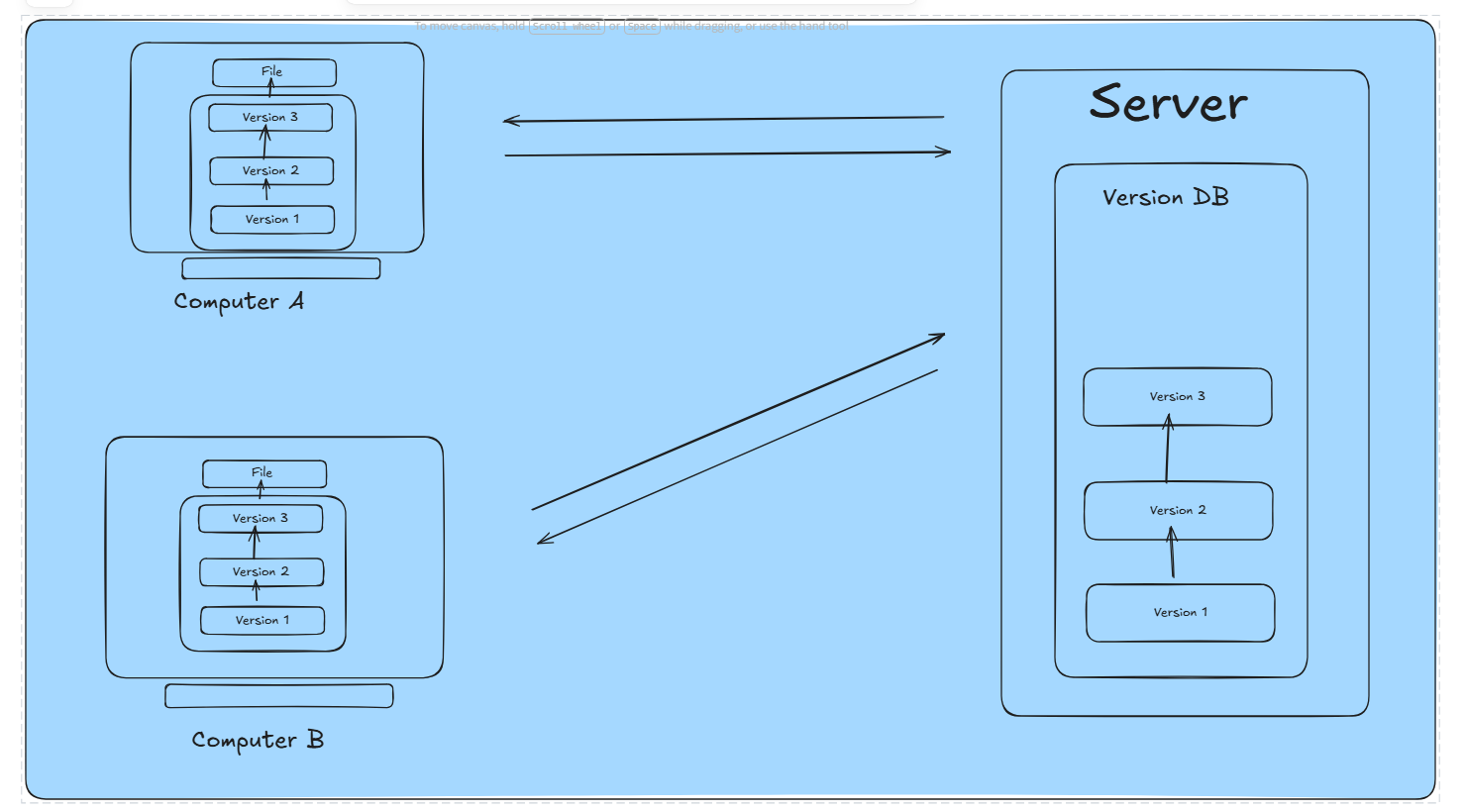
Distributed Version Control System: Now the idea was to share and distribute among teams so that versions could not be lost and if they can collaborate together in different ways. This allows them to set up several types of workflows that weren’t possible in centralized systems, such as hierarchical models.
So, What is Git ?
A tool which helps you to save and maintain different versions of your files and code, works with others, keep track of changes and undo mistakes.
So, Why git is used?
Snapshots, Not differences
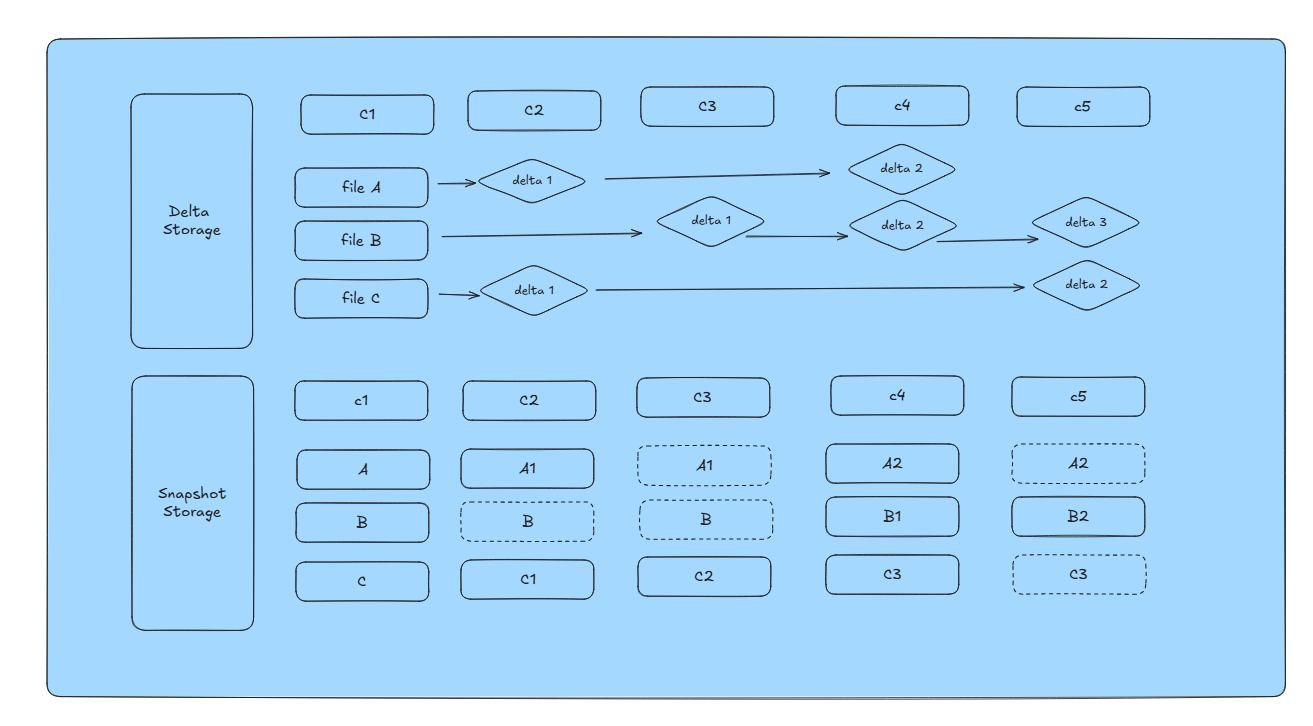
Git follow snapshot model while other followed delta based systems. It made git faster.
Previously, it was like if I want to get 22nd version of project then then I store 1st version and then add and subtract differences followed until 21st version but git captured files at exact moment i.e., snapshots. And to prevent project size to explode, git is a content addressable filesystem, it doesn’t care about filenames or where it is stored, it cares about bits and bytes stored inside the file.
For Eg. If 10 same files are stored with multiple filenames, git sees the content is same, generate one hash and stores one copy of data.
Nearly Every Operation Is Local
Most operations in Git need only local files and resources to operate — generally no information is needed from another computer on your network.
Git has integrity
Everything in Git is check-summed before it is stored and is then referred to by that checksum. This means it’s impossible to change the contents of any file or directory without Git knowing about it. Git stores everything in its database by the hash value of its contents.
Git generally adds Data
After you commit a snapshot into Git, it is very difficult to lose.
Git working
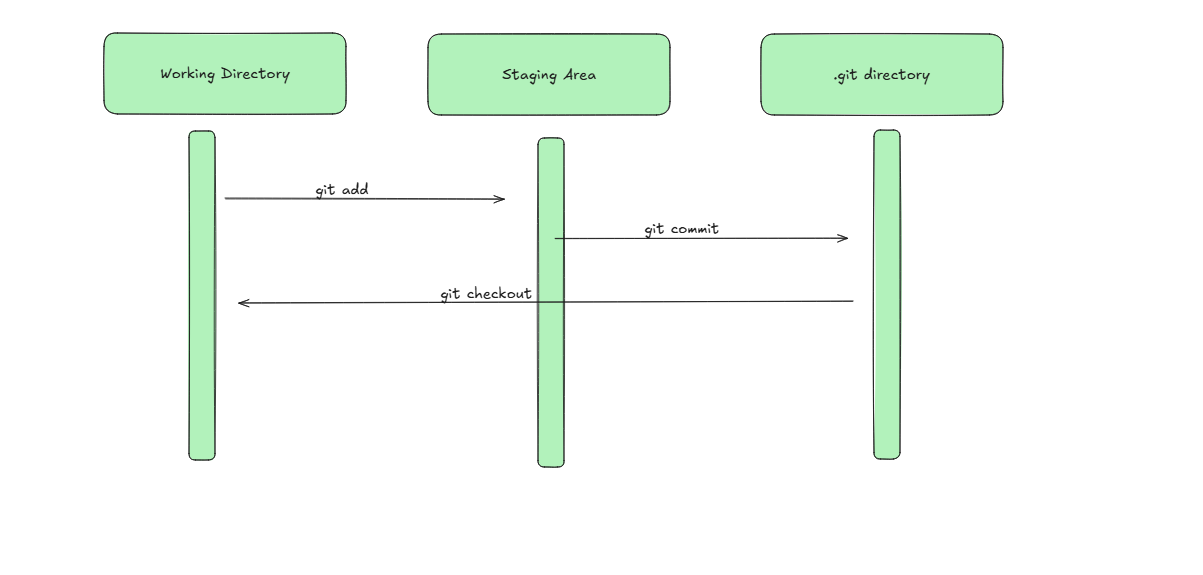
Git has three main states that your files can reside in: modified, staged, and committed:
Modified: You changed data but not committed to database.
Staged: You marked a modified file.
Committed: You saved the snapshot in your local database.
Some Basics
Repository: It is .git folder in the project. It acts as the database/ warehouse of the project. It contains every snapshots, branches and file (blobs).
Commit: It is snapshot, this version is stored in the .git repo.
Branch: It is a light weight movable pointer to specific commit. It contains 40 character commit hash which points to commit.
Head: It is also pointer which points where it is currently at or the Branch you are currently working on.
Workflow:
It involves various steps;
Getting a repository: We can take from local directory or from cloning remote repository.
For cloning we use, git clone <url>.
Initializing: It including going to the directory and initializing git.
For initializing we use, git init.
Modifying: This involves the update or the changes we want to consider.
Staging: This involves to add modified version of project into staging area, so that git can consider staged files else these files will be untracked. It is like a draft.
For staging git add <file_name>, to unstage git restore --staged <file_name>
Viewing changes: If we want to take a look of staged and unstaged changes, we use git status.
Committing: If we are ready to take a snapshot, we use git commit -m “Message”.
For skipping staging area we use git commit -a -m 'Message'.
Viewing: For viewing commit history, we use git log.
